🇪🇸 Español
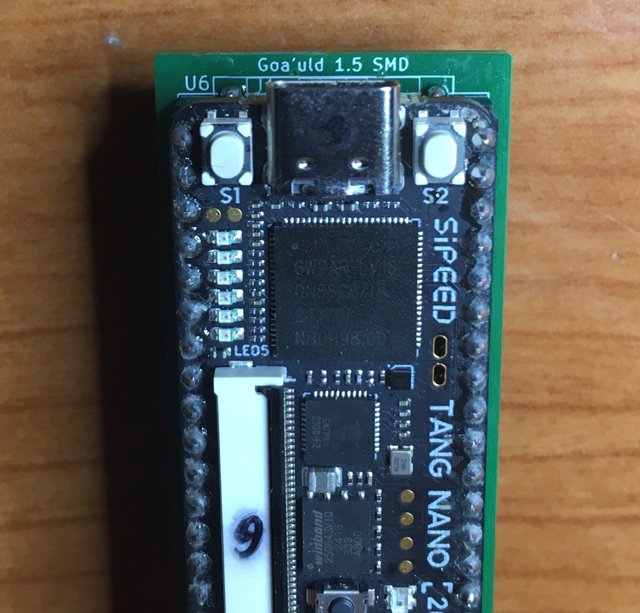
Esta guía aplica a los dos proyectos basados en el Goauld para Tang Nano 20K:
- 🔗 MSXgoauldSD_tn20k — proyecto original de jabadiagm
- 🔗 MSXgoauldSD_usbkb — fork con soporte de teclado y joystick USB
Requisitos previos
- 🖥️ Windows — el Gowin Programmer solo está disponible para Windows
- 🔌 Cable USB-C — necesario para conectar el Tang Nano 20K al PC durante el flasheo
- 📦 Pack de archivos — disponibles para descarga:
Preparación
- Descarga el pack desde la sección de Downloads.
- Descomprime la carpeta
programmer1.9.11.03Education(2536).Win64que encontrarás dentro del pack.ç - Conecta el Tang Nano 20K (Goauld) al PC con el cable USB-C
- Ejecuta el Gowin Programmer desde esa carpeta — no requiere instalación.
Ya estás listo para grabar el firmware.
Paso 1 — Flashear el firmware FPGA
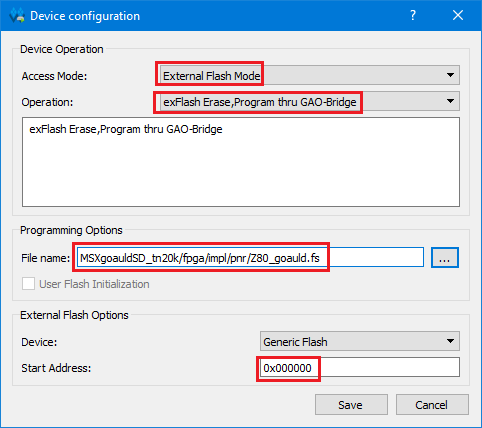
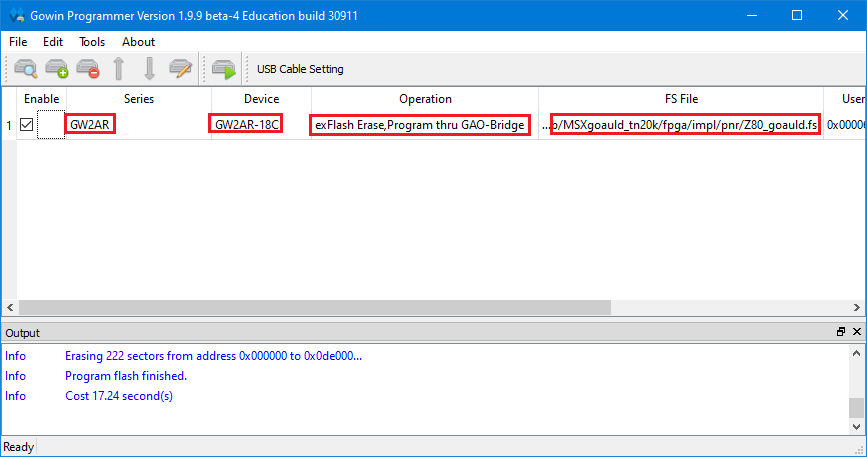
En el Gowin Programmer, carga el archivo Z80_goauld.fs (o MSXgoauldSD_usbkb.fs en el caso del fork con USB). Puedes usar SRAM para una prueba rápida, o la flash externa para que persista tras apagar.
Paso 2 — Flashear el BIOS pack
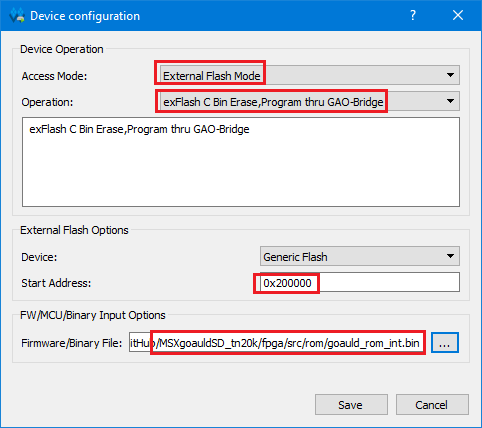
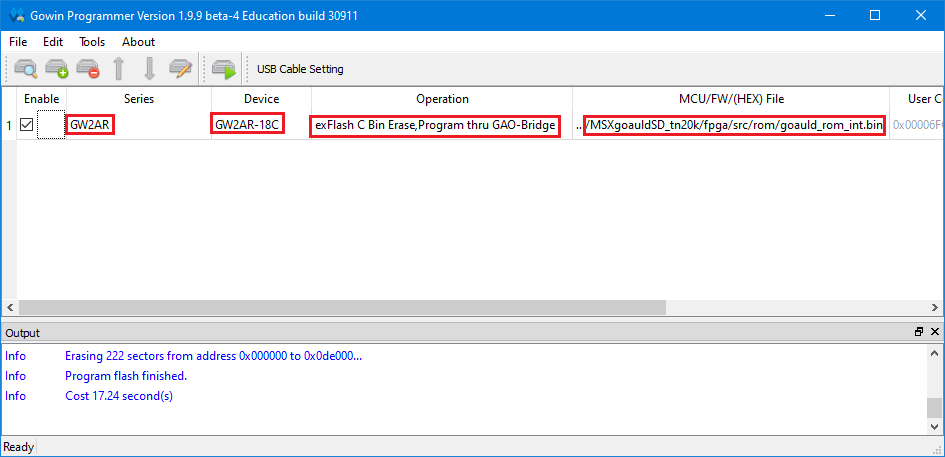
Configura la operación como «exFlash C Bin Erase, Program thru GAO-Bridge» y establece la dirección de inicio en 0x200000. Luego carga el archivo del BIOS pack.
⚠️ Aviso: El proceso de flasheo puede no funcionar correctamente en todos los modelos de MSX.
Flasheo del RP2040 (solo MSXgoauldSD_usbkb)
- Mantén pulsado BOOTSEL y conecta el cable USB-C.
- Aparecerá la unidad
RPI-RP2en tu ordenador. - Copia el archivo
rp2040_keyboard.uf2en esa unidad. - El parpadeo azul al arrancar confirma que el firmware está corriendo.
🇬🇧 English
This guide applies to both Goauld projects for the Tang Nano 20K:
- 🔗 MSXgoauldSD_tn20k — original project by jabadiagm
- 🔗 MSXgoauldSD_usbkb — fork with USB keyboard and joystick support
Requirements
- 🖥️ Windows — Gowin Programmer is only available for Windows
- 🔌 USB-C cable — required to connect the Tang Nano 20K to your PC during flashing
- 📦 Files pack — available:
Preparation
- Download the pack from the Downloads section.
- Extract the folder
programmer1.9.11.03Education(2536).Win64found inside the pack. - Connect the Tang Nano 20K (Goauld) to your PC using the USB-C cable.
- Run Gowin Programmer from that folder — no installation required.
You are now ready to flash the firmware.
Step 1 — Flash the FPGA firmware
In Gowin Programmer, load Z80_goauld.fs (or MSXgoauldSD_usbkb.fs for the USB fork). Use SRAM for a quick test, or the external config flash to persist across power cycles.
Step 2 — Flash the BIOS pack
Set the Operation to «exFlash C Bin Erase, Program thru GAO-Bridge» and set the Start Address to 0x200000. Then load the BIOS pack file.
⚠️ Warning: Not yet fully working on all MSX!
Flashing the RP2040 (MSXgoauldSD_usbkb only)
- Hold BOOTSEL and plug in the USB-C cable.
- The
RPI-RP2drive will appear on your computer. - Copy
rp2040_keyboard.uf2onto that drive. - The blue blink at boot confirms the firmware is running.